Enterprise policies are configuration rules that allow administrators to centrally manage and enforce how the NordLayer Browser behaves across an organization. Instead of relying on individual users to configure their browsers correctly, you define rules once and apply them to every device, whether it's a managed endpoint or a personal device running the NordBrowser app.
Enterprise policies control settings across areas such as security posture, extensions, data handling, privacy, access control, and the overall user experience, so the browser always aligns with your set standards, and compliance requirements.
In practice, enterprise policies turn the NordLayer Browser into a policy-enforcement point at the browser layer, giving you a central, scalable way to shape security, privacy, access control, and usability with defined, centrally managed rules.
What are the benefits of enterprise policy management?
Without a robust way to enforce browser behavior, admins are forced to rely on fragmented device-management tools, manual configuration, or incomplete browser controls. That weakens standardization, increases admin effort, and leaves gaps in your security posture.
Enterprise policies solve this by giving you:
- Central configuration — define how the browser should behave from one place.
- Consistent enforcement — assign each user to one profile, and its rules apply automatically across all their devices.
- Governance, not just setup — reduce misconfiguration, prevent risky browser behavior, and align the browser with your security requirements.
What you can control
Enterprise policies are organized into categories so you can manage related settings together:
- Security: extension allowlists/blocklists, force-installed extensions, password manager, URL filtering, TLS/DNS settings, and local device security (e.g., configuring download settings, disabling developer tools, and restricting screenshots or printing).
- UX and control: homepage and startup pages, new-tab page customization, profile and session behavior, download locations and restrictions, and UI lockdown (hiding or disabling specific menu items and buttons).
- Privacy and telemetry: cookie and tracking behavior, history-deletion prevention.
- Access control: allowlists and blocklists for domains and URLs, wildcard and subdomain patterns.
- Extensions and integrations: per-extension enable/disable, permission scoping, DLP-style extension rules.
How to set up enterprise policies
Enterprise policies are created and managed centrally from the NordLayer Control Panel, then pushed automatically to the browser on each device. Follow these steps:
- Sign in to the NordLayer Control Panel.
- In the left sidebar, find the NordLayer Browser section and click Enterprise policies.
- Select Create profile.
You can create up to 20 enterprise policy profiles per organization.
- In the modal that opens, enter a profile name. You can then assign users to this profile by selecting them directly from your active members list.
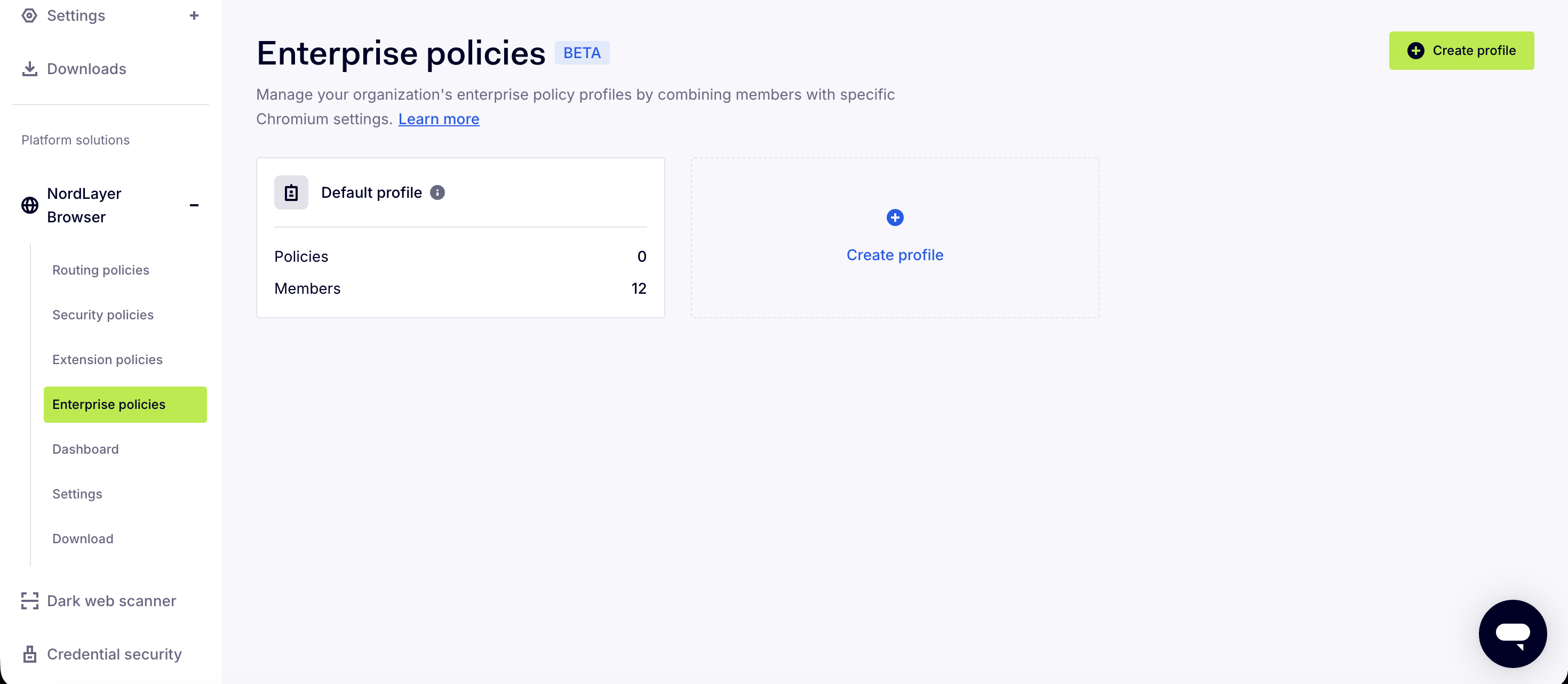
You cannot add members via teams or transfer them from other profiles. Each member can belong to only one profile at a time.
- Once you've created a profile, you can add various policies that match the behavior you want to manage.
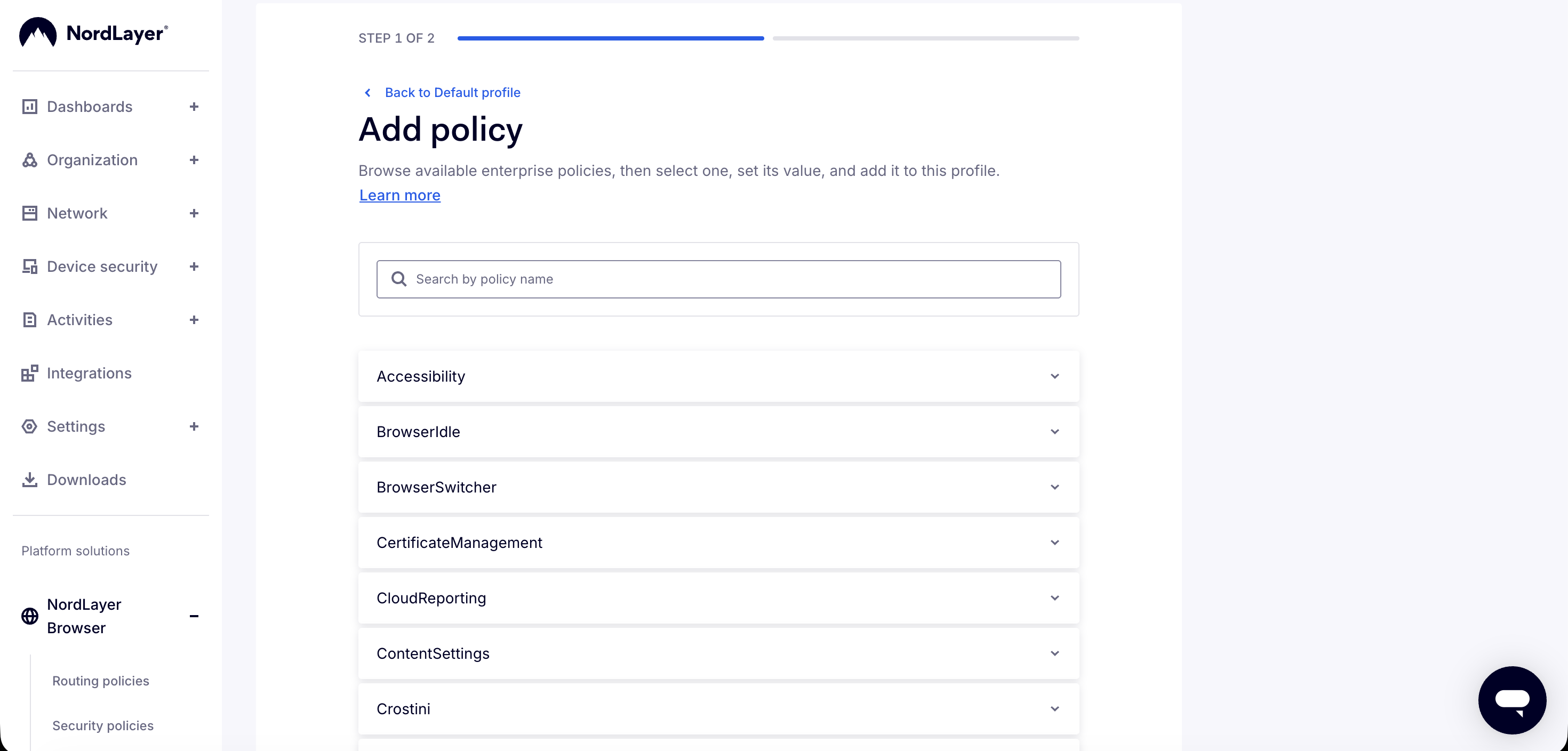
- Configure the policy settings. Define the specific rules, for example, set an extension allowlist, lock the homepage, block certain download file types, or apply a URL block-list.
Policies cannot be assigned directly to individual members or teams. They apply to everyone in the profile they were added to. Added policies become active automatically the next time the browser syncs.
You may use the enterprise policies section to review which policies are active, confirm they're being applied as expected, and update them as your requirements change.
Frequently asked questions
Who can set up enterprise policies?
NordLayer Control Panel owners.
Do enterprise policies work on personal devices?
Yes, policies pushed from the Control Panel apply automatically to the NordLayer Browser regardless of whether the device is a managed endpoint or a personal device, ensuring consistent behavior for every user.
How quickly do policies take effect?
Policies apply automatically to the browser once it syncs with the Control Panel. Changes and updates are propagated to assigned users and devices without requiring manual reconfiguration on each endpoint.
Can I apply different policies to different teams?
No, policies are assigned at the profile level. You can set up different profiles to accommodate varying team needs, such as creating one profile with strict download controls for one department and a profile with a lighter configuration for another.
What happens if user tries to change a locked setting?
When a setting is enforced by policy (for example, a locked homepage or a disabled developer-tools option), the user cannot override it. Enforced settings appear as managed by your organization.
Can enterprise policies control which extensions users install?
Yes, you can define allowlists, blocklists, force-install specific extensions, pass configurations to them, and hide the Web Store to reduce user-driven installs.
Is this the same as the existing security policies?
Enterprise policies build on and expand the capabilities partly available today through security policies (such as controlling copy, paste, download/upload, camera, and microphone). Enterprise policies broaden this into a full, categorized policy framework.
How do I verify a policy is being enforced?
Use the enterprise policies section of the Control Panel to review active policies and their assignments. For a quick check, confirm the enforced behavior directly in the browser on a test device or group before rolling out widely.