NordLayer Browser is a secure web browser designed for businesses. It simplifies network access for employees while providing administrators with enhanced control, monitoring capabilities, and security features.
To use NordLayer Browser, you must be an existing NordLayer customer and contact our sales team.
Getting started with the NordLayer Browser
- Log into the NordLayer Control Panel.
- In the left sidebar, click the NordLayer Browser tab.
- Click the NordLayer Browser banner.
.png)
- Complete and submit the registration form.
Our sales team will reach out soon to help activate this feature on your NordLayer account
Enabling NordLayer Browser
Once this feature is active on your account, you'll need to set up the NordLayer browser:
- Log into the NordLayer Control Panel.
- Click on the NordLayer Browser tab in the left sidebar.
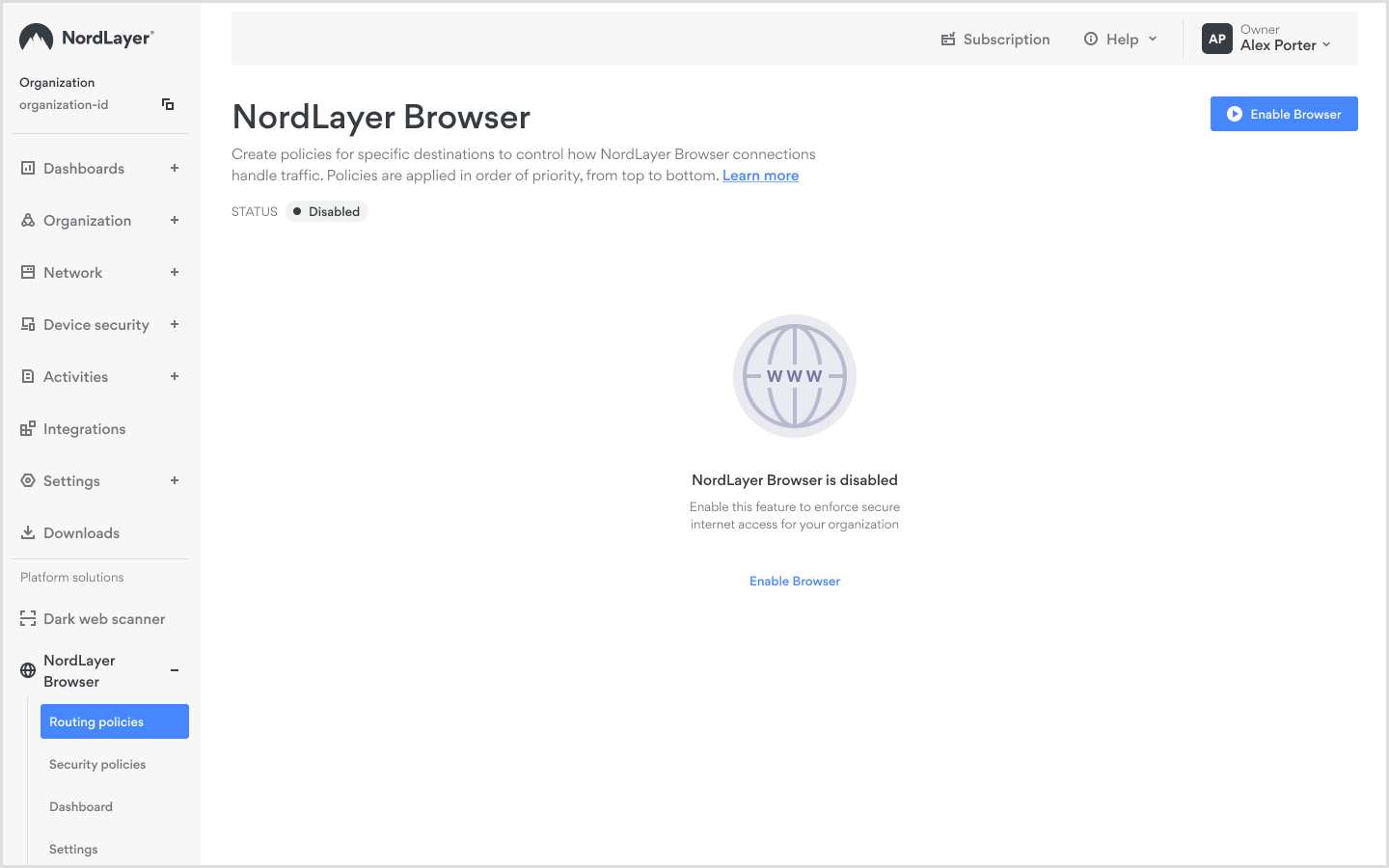
- Select Routing policies from the expanded menu.
- Click the Enable Browser button on the NordLayer Browser screen.
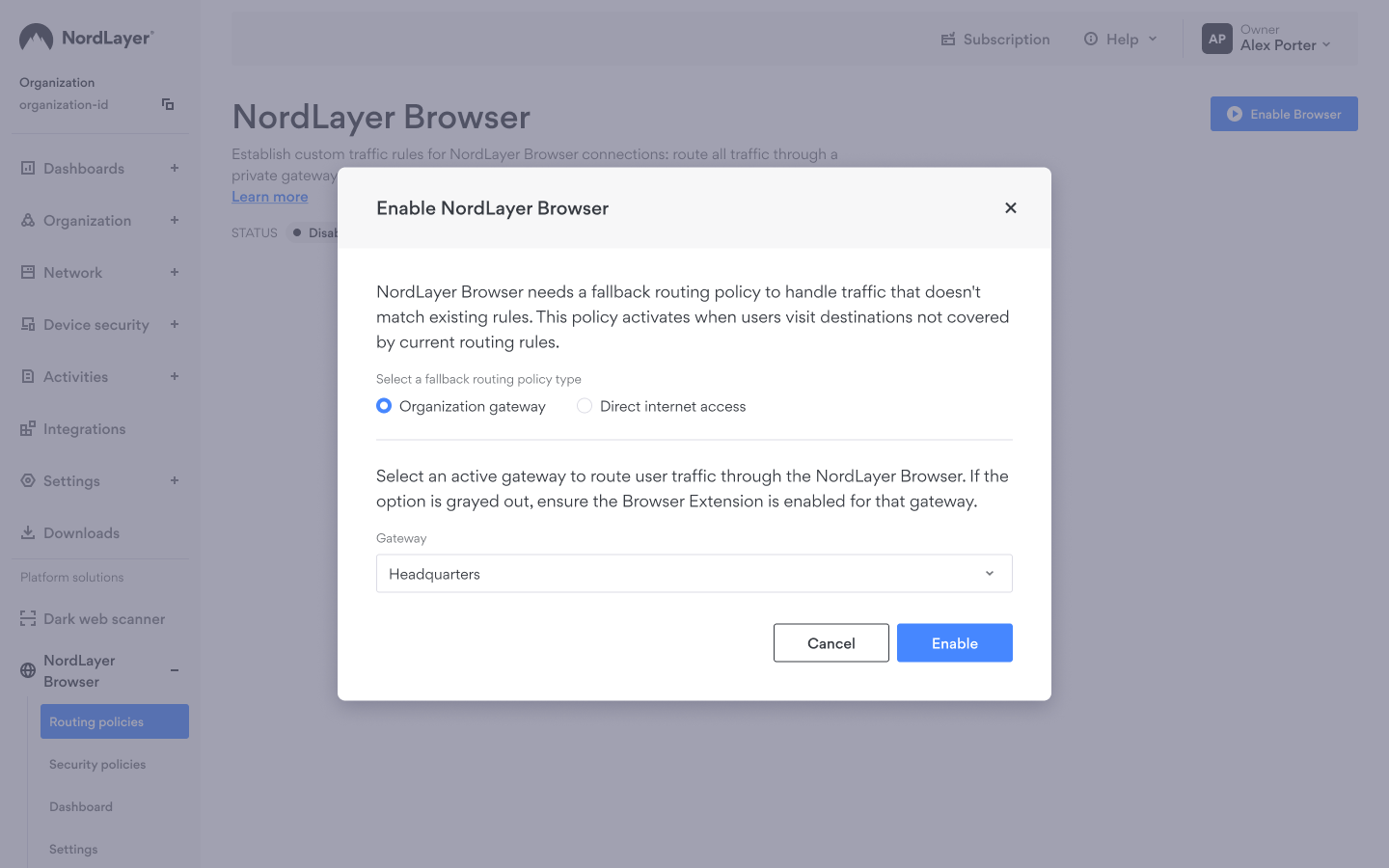
To use NordLayer Browser, you must have a default routing policy. You can further customize its behavior using specific routing policies. When prompted, configure the following settings:
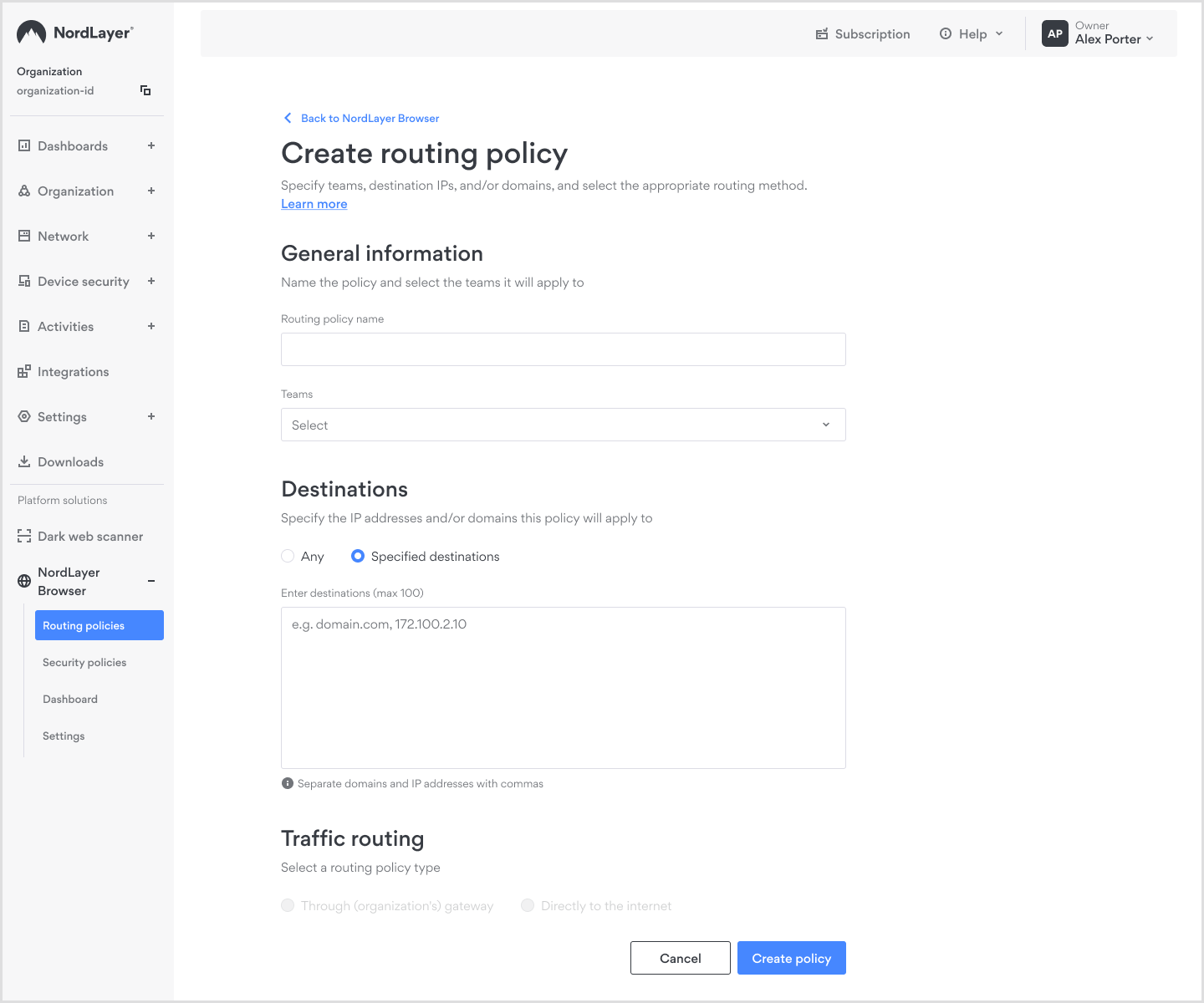
- Create a name for your routing policy
- Select which teams this policy applies to
Teams not selected here, or in any of the following policies will have no internet access through NordBrowser
- Specify domains and/or IP addresses for this policy
- Choose Any to apply the policy to all destinations
- You may also specify individual destinations for granular control (e.g., routing internal resources through a gateway)
- Choose how traffic should be routed:
- Through your organization's gateway with traffic encryption
- Direct internet access without traffic encryption
- Block access
- You will also be prompted to configure a fallback route for traffic that doesn't match any existing rules:
- Route through your organization's gateway
- Route via direct internet access
If you're on the NordLayer Lite plan, only direct internet access is available, as this plan doesn't include gateway functionality.
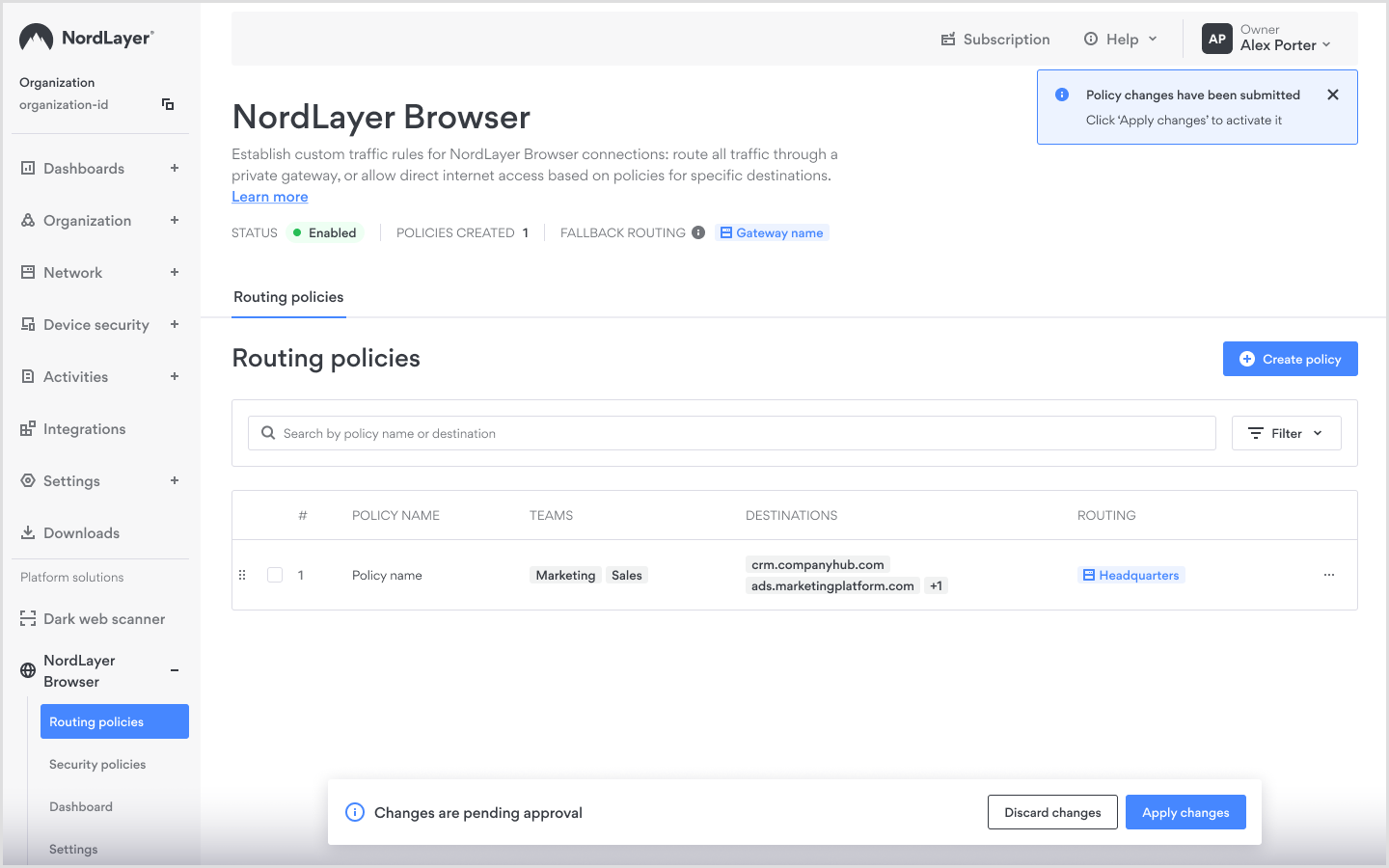
- Once you've configured your routing policy, click Apply changes to activate NordLayer Browser for your organization.
Once the Default policy is established, administrators can click the Create new policy button to add as many routing policies as needed. Because policies are evaluated by priority, it is important to drag and drop them into the correct order to match your intended traffic routing.
NordLayer feature availability on NordLayer Browser
Some NordLayer features can be enabled for NordLayer Browser, allowing you to maintain the same functionality you currently use. To enable these features, follow the same process as you would enable them for your NordLayer setup.
Login methods
Supported:
- Two-factor authentication (2FA) - you can also use the same authentication on NordBrowser and NordLayer
- Email and password login
- SCIM provisioning
Not supported:
- Biometric authentication
Security configurations
Supported:
- Web protection
Not supported:
- All other NordLayer security configuration options
Device security controls
Device posture security controls are currently unavailable for NordLayer Browser.
Gateway controls
Not supported:
- Browser extension controls do not apply to the NordLayer Browser.
- Cloud Firewall.
- Gateway-level split tunneling.
Server-level configurations
Supported:
- DNS filtering
- Application blocker
- Custom DNS
Onboard your organization to NordBrowser
If you are already using NordLayer, your existing Teams and Members will automatically carry over to NordLayer Browser.
Member onboarding emails are not currently automated, so administrators will need send them manually. We’ve created the following templates to help you easily invite your team to NordLayer Browser:
For existing NordLayer members
You may also refer members to these FAQ articles for assistance with their NordBrowser configuration:
To use the NordLayer Browser, users will need to install the NordBrowser app. Once set up, the browser offers built-in NordLayer connectivity, providing a seamless and integrated experience.
Note: In case you have any questions or are experiencing any issues, please feel free to contact our 24/7 customer support team.